> ## Documentation Index
> Fetch the complete documentation index at: https://moengage-docs-mcp-segmentation-tool-belt.mintlify.site/llms.txt
> Use this file to discover all available pages before exploring further.
# Modify WhatsApp Campaign
> View, duplicate, or delete WhatsApp campaigns in MoEngage. Understand campaign statuses and manage your WhatsApp messaging from the dashboard.
Before you send your first WhatsApp Campaign, you must understand the different statuses that a WhatsApp Campaign can take in MoEngage. You will also need to know how to view these campaigns and duplicate or delete them based on your requirements.
## Status
The following table describes all the statuses of a WhatsApp campaign.
| Status | Description |
| ------------ | --------------------------------------------------------------------------------------------------------------------------------------------------------------------------------------------------------- |
| Draft | The campaign is in a draft state and is not published. |
| Not Sent | The campaign is not sent to any of the target audience. |
| Sending | The campaign is being sent to the target audience. |
| Scheduled | The campaign is scheduled to be sent to the target audience. |
| Sent | The campaign is sent to all of the target audiences. |
| Active | The campaign is sent and the campaign is available for all target audiences. |
| Paused | The campaign is paused for all the target audiences. |
| Stopped | The campaign is stopped for all the target audiences. |
| Expired | The campaign is expired for all the target audiences. |
| Under Review | The campaign is under review using the campaign approval process. For more information, refer to [Campaign Approval Workflow](/user-guide/settings/account/team-management/campaign-approval-workflow). |
| Rejected | The campaign has been rejected under the campaign approval process For more information, refer to [Campaign Approval Workflow](/user-guide/settings/account/team-management/campaign-approval-workflow). |
For more information, refer to [Campaign Approval Workflow](/user-guide/settings/account/team-management/campaign-approval-workflow).
## View
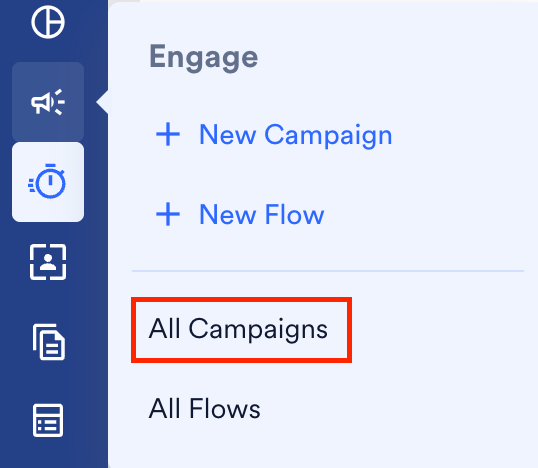
1. On the sidebar menu in MoEngage, hover over the **Engage** menu item  . The **Engage** menu appears.
2. Click **All Campaigns**.
. The **Engage** menu appears.
2. Click **All Campaigns**.
 The All campaigns page is displayed.
3. Use the filters to search for the campaigns you want to view. MoEngage also provides you with a channel filter that lets you view all of the WhatsApp campaigns that you created.
The All campaigns page is displayed.
3. Use the filters to search for the campaigns you want to view. MoEngage also provides you with a channel filter that lets you view all of the WhatsApp campaigns that you created.
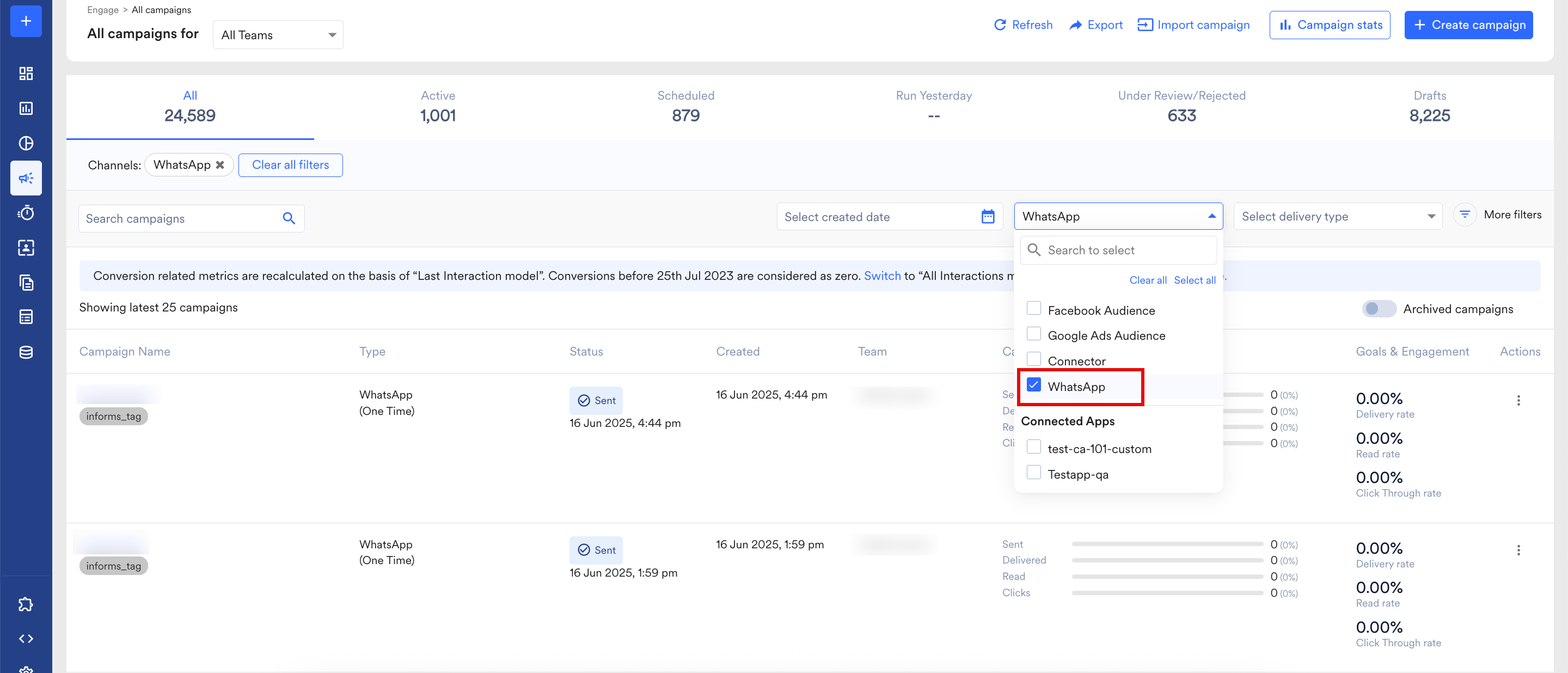 You can then view your WhatsApp campaigns using one of the following methods:
* * Click the ellipsis icon on the right-hand side and select **View**.
* Click the campaign row to open the **Campaign Info** page.
## Duplicate
Duplicate the WhatsApp campaign using one of the following methods:
1. On the All campaigns page, click the ellipsis icon and click **Duplicate**.
2. Click the campaign to open the **Campaign Info** page. On this page, click the
You can then view your WhatsApp campaigns using one of the following methods:
* * Click the ellipsis icon on the right-hand side and select **View**.
* Click the campaign row to open the **Campaign Info** page.
## Duplicate
Duplicate the WhatsApp campaign using one of the following methods:
1. On the All campaigns page, click the ellipsis icon and click **Duplicate**.
2. Click the campaign to open the **Campaign Info** page. On this page, click the  button.
## Delete
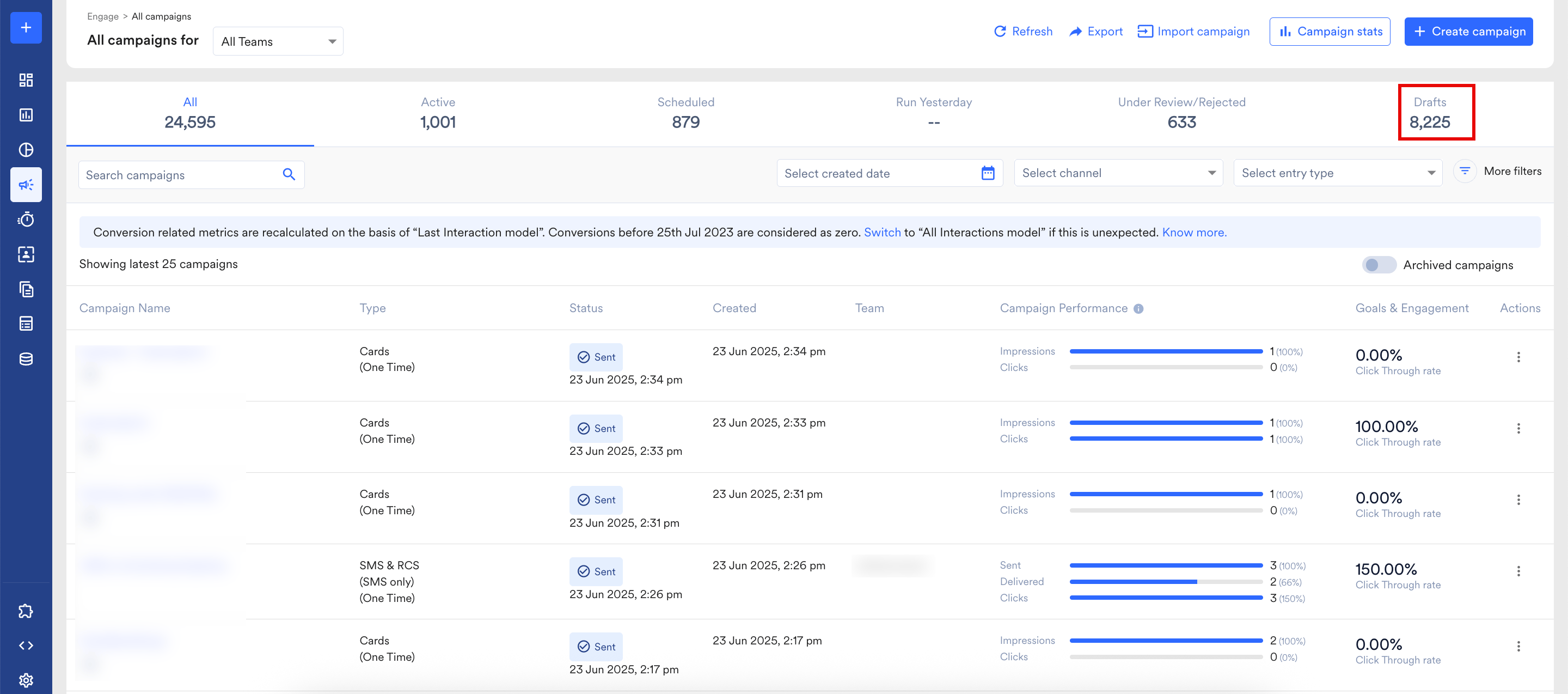
You can only delete campaigns that are in a draft state. To access these campaigns, you can click **Drafts**at the top of the All campaigns page.
button.
## Delete
You can only delete campaigns that are in a draft state. To access these campaigns, you can click **Drafts**at the top of the All campaigns page.
 To delete a WhatsApp campaign:
1. On the **All Campaigns**page, click **Drafts** in the upper-right corner.
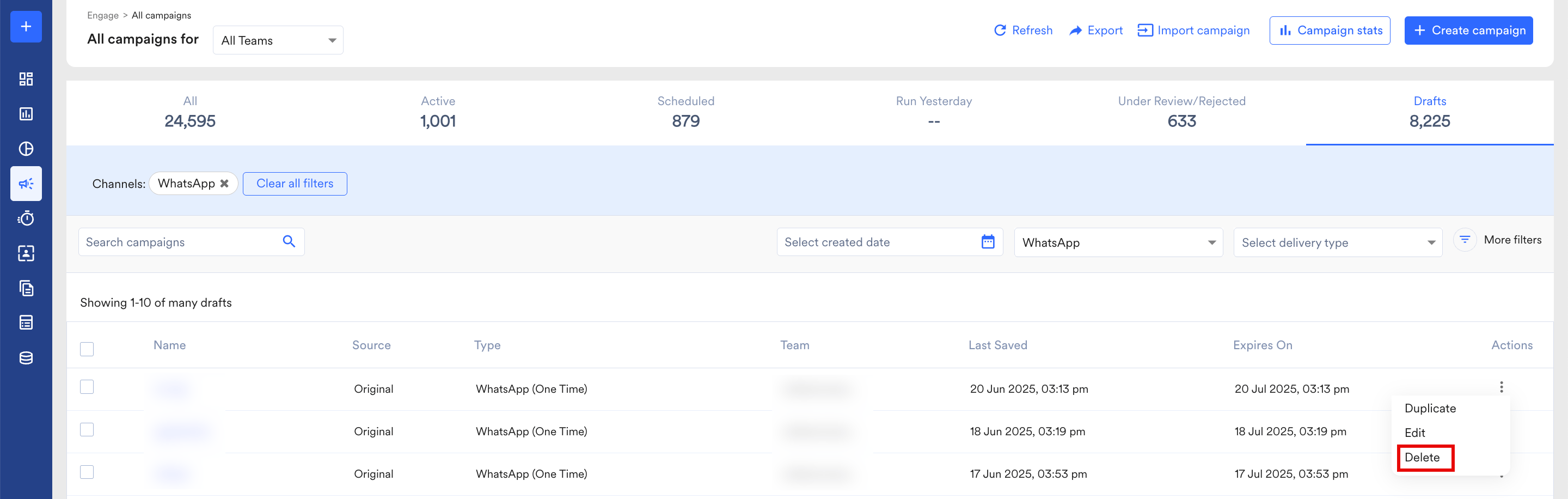
2. Click the ellipsis icon in the **Actions** column for the campaign that you want to delete and then click **Delete**.
To delete a WhatsApp campaign:
1. On the **All Campaigns**page, click **Drafts** in the upper-right corner.
2. Click the ellipsis icon in the **Actions** column for the campaign that you want to delete and then click **Delete**.
 3. On the **Confirmation** pop-up window, click **Confirm**.\
You can also select the check box for the campaign you want to delete. Click **Delete** at the top bar as shown below:
3. On the **Confirmation** pop-up window, click **Confirm**.\
You can also select the check box for the campaign you want to delete. Click **Delete** at the top bar as shown below:
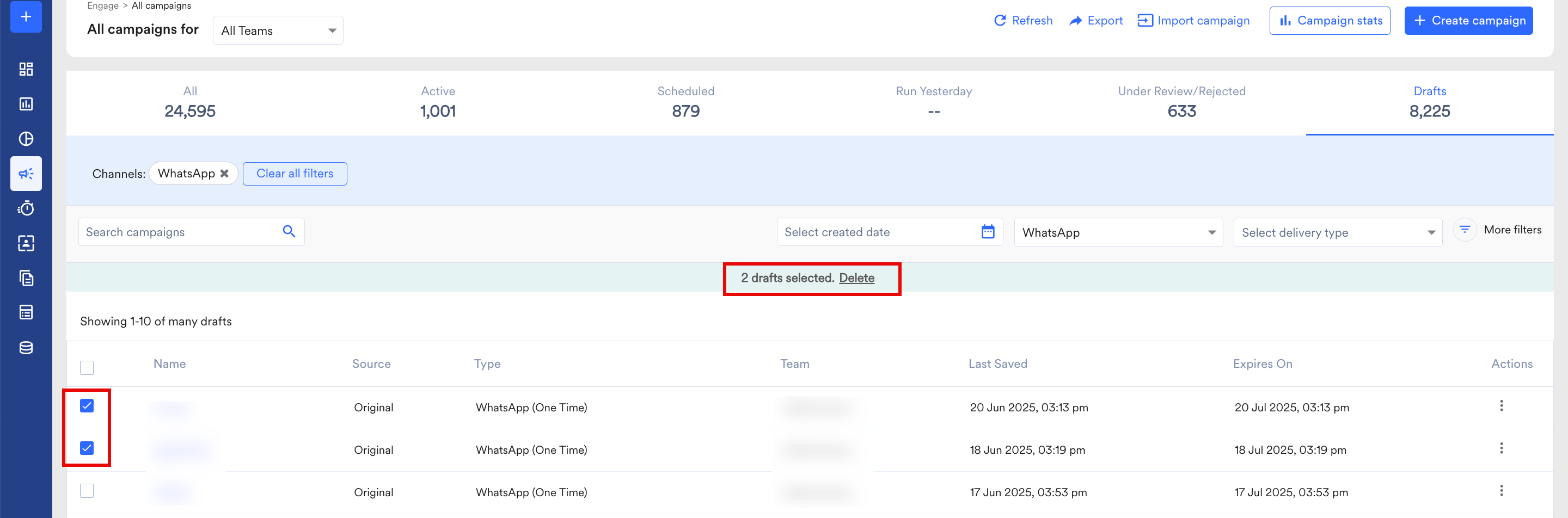 This will let you delete multiple drafts at the same time.