> ## Documentation Index
> Fetch the complete documentation index at: https://moengage-docs-mcp-segmentation-tool-belt.mintlify.site/llms.txt
> Use this file to discover all available pages before exploring further.
# Manage Subscription
> Activate and manage your MoEngage subscription plan using a unique subscription code from your customer success manager or welcome guide.
MoEngage offers simple, uncomplicated pricing to help teams of all sizes deliver the right omni-channel customer experience for your business. Click [here](https://www.moengage.com/plans-and-pricing/) to read more about the plans MoEngage has on offer.
MoEngage uses a unique Subscription Code to activate the right plan for your workspace. You can reach out to your designated customer success manager to get the code.
# How to activate your subscription?
## Option A: Welcome Guide
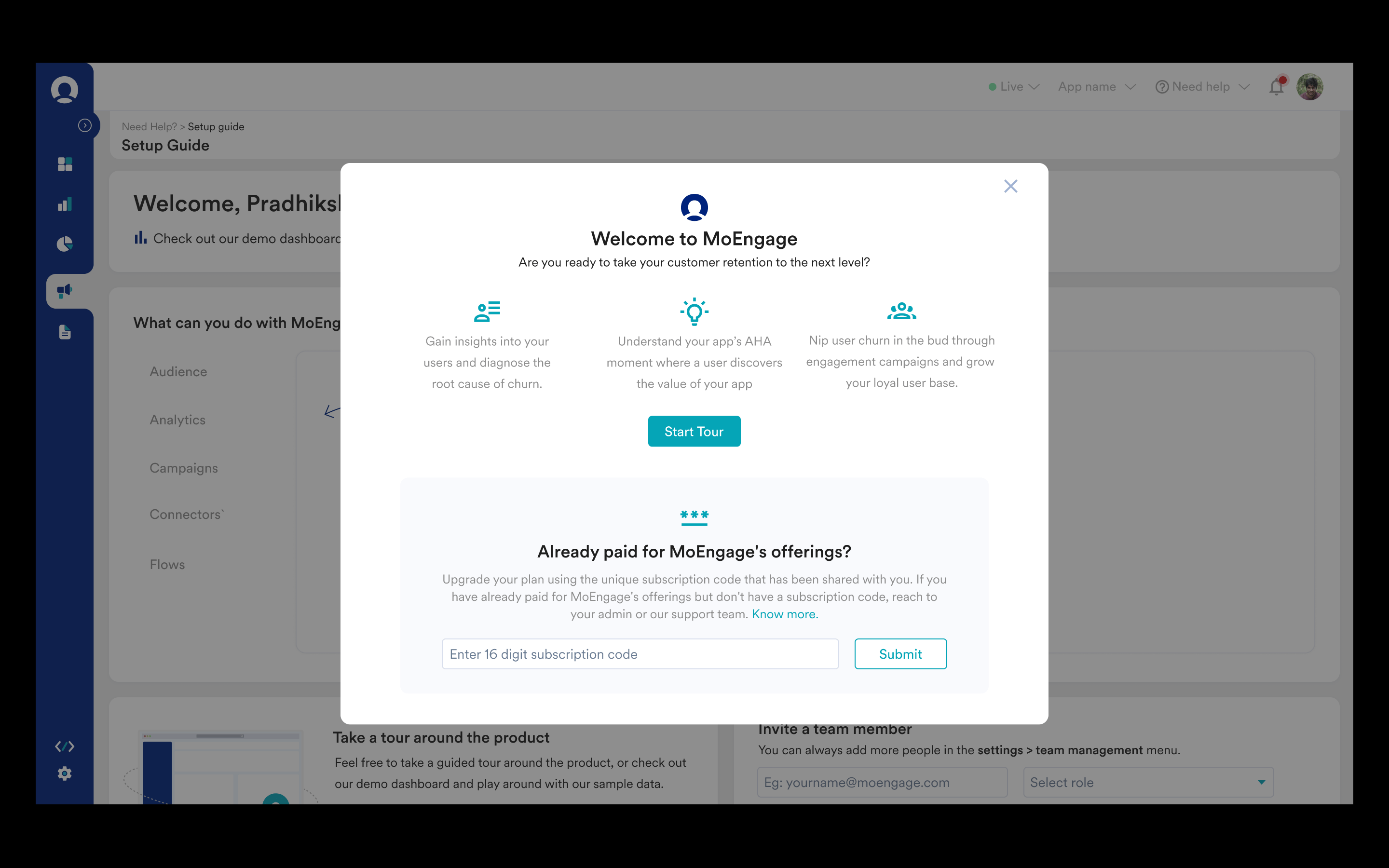
**Step 1:** Users are greeted with a welcome prompt after signing up. The subscription code can be entered here.
**Step 2:** Enter Subscription Code and click on Submit.
 ## Option B: Subscription Page
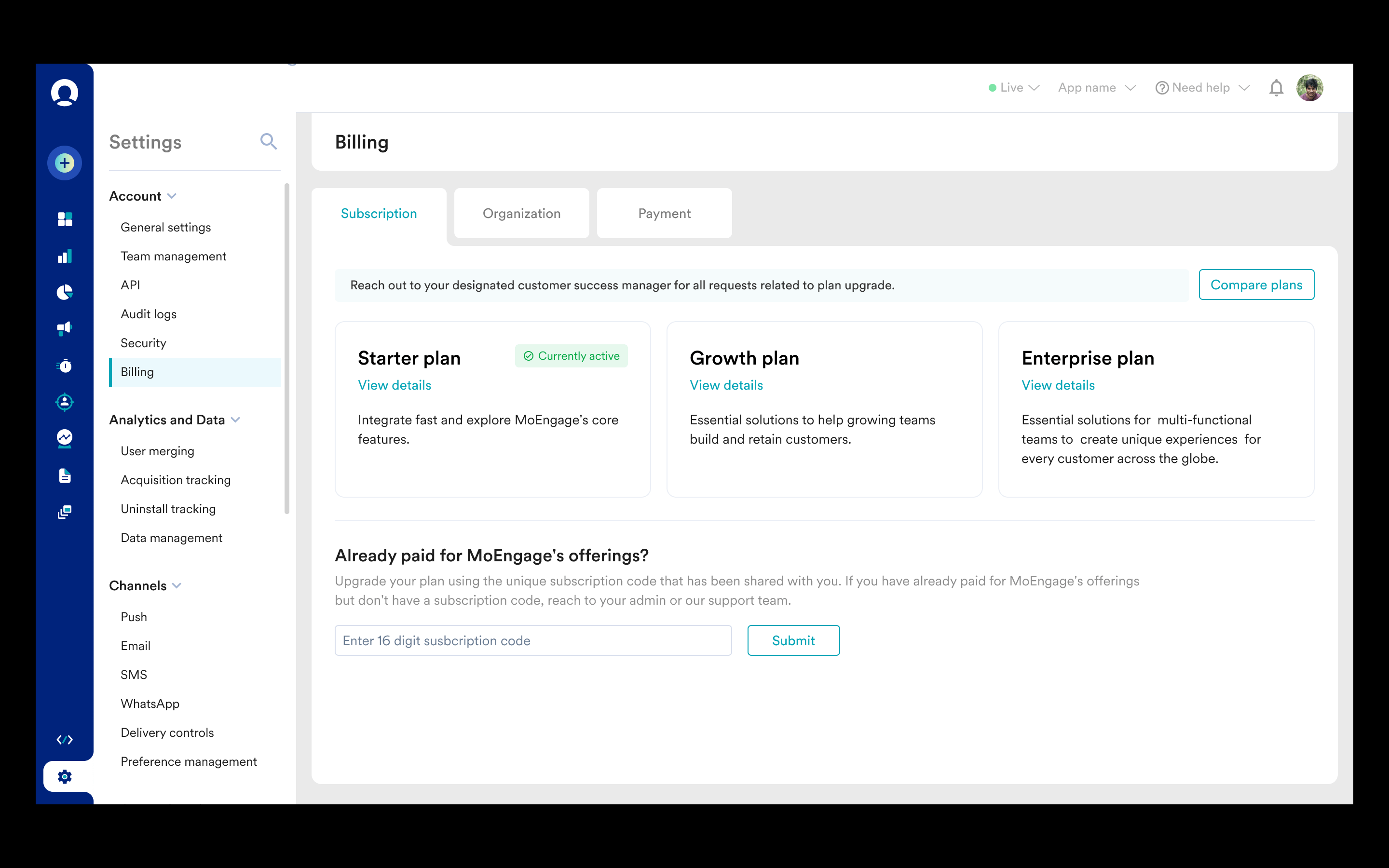
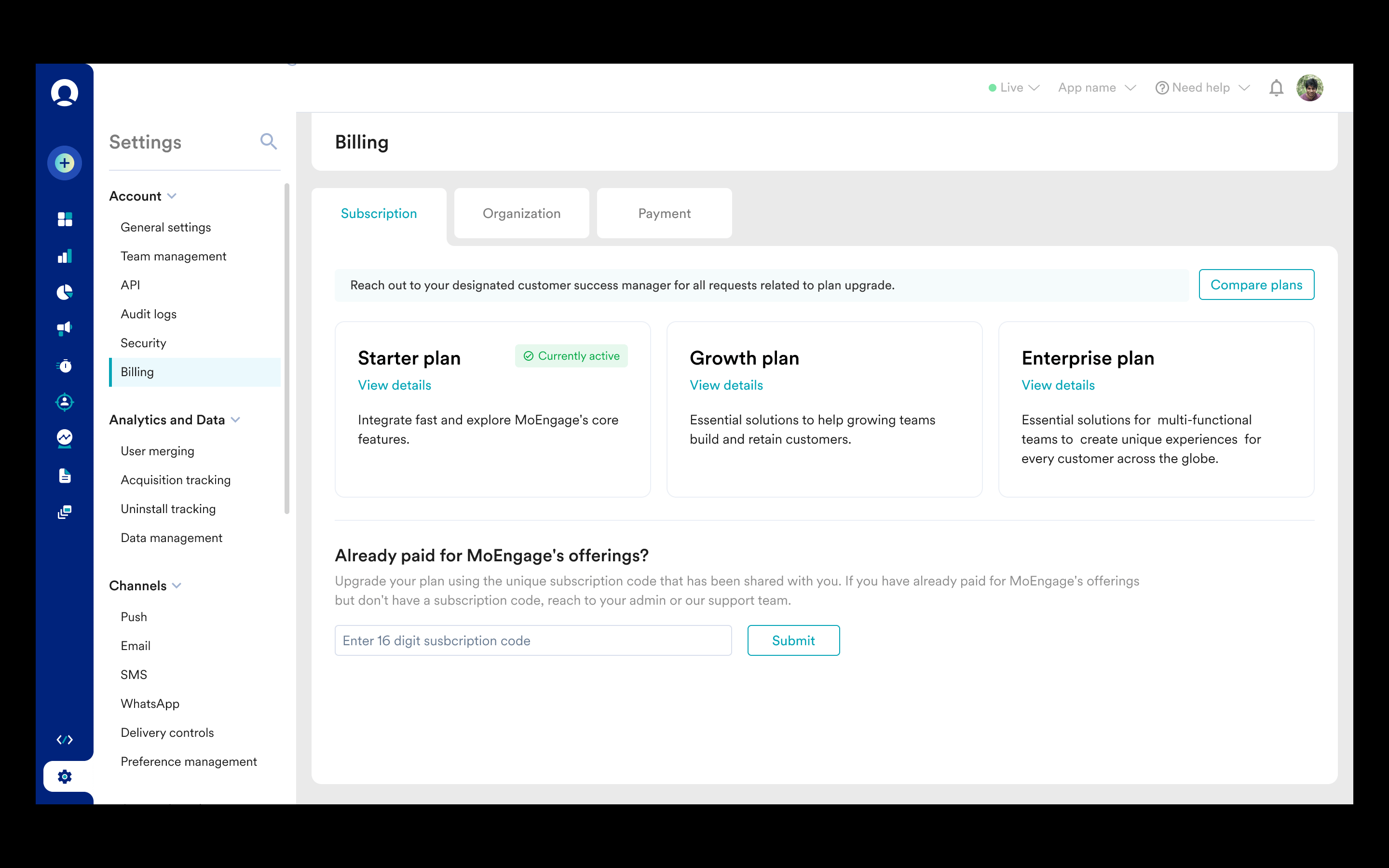
**Step 1**: Click on Settings -> Billing
**Step 2:** Enter Subscription Code and click on Submit.
## Option B: Subscription Page
**Step 1**: Click on Settings -> Billing
**Step 2:** Enter Subscription Code and click on Submit.
 ## Option C: Setup Guide
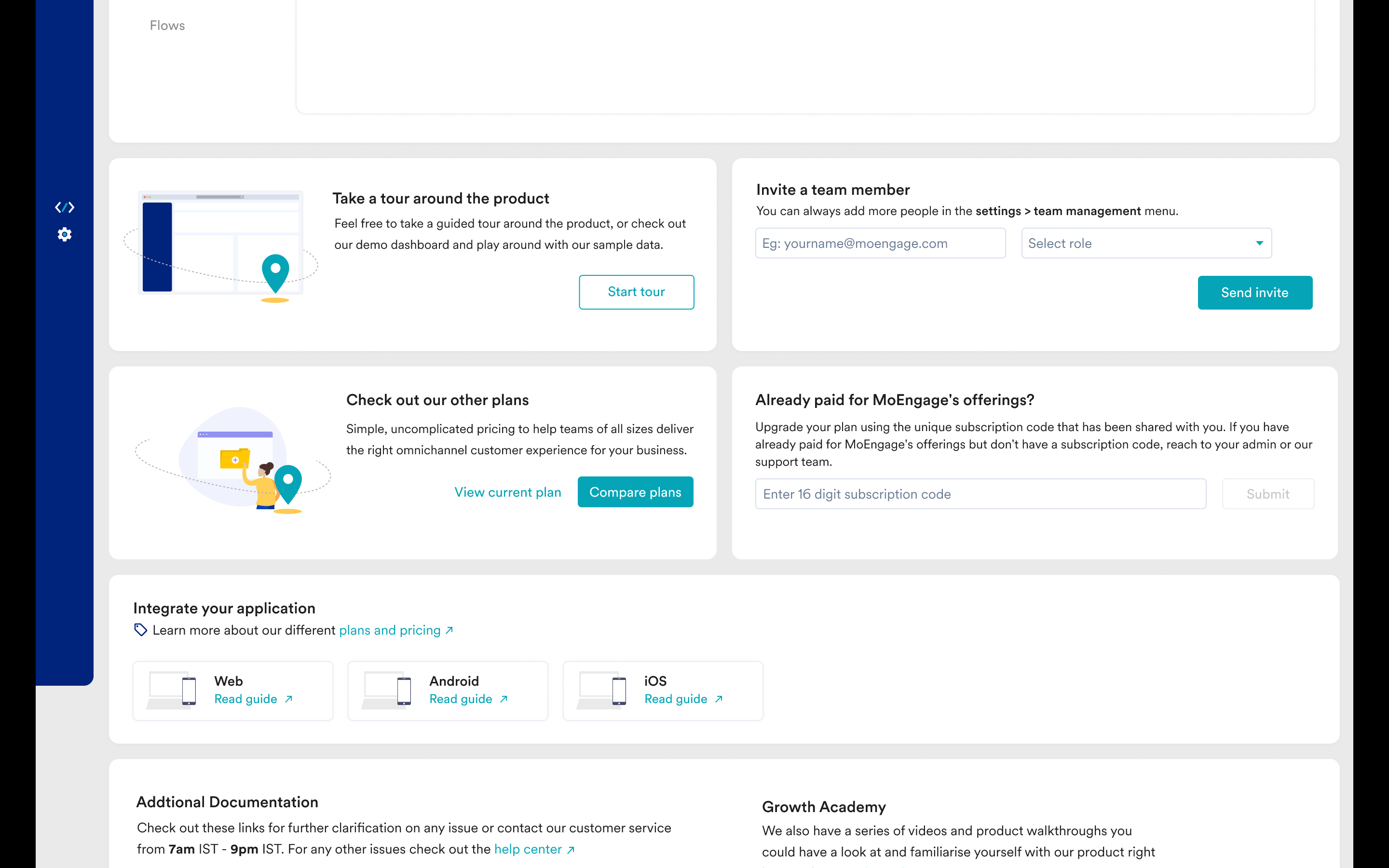
**Step 1**: Click on the "Need help" dropdown in the top right corner and click on "Setup Guide"
**Step 2:** Enter the Subscription Code and click on Submit.
## Option C: Setup Guide
**Step 1**: Click on the "Need help" dropdown in the top right corner and click on "Setup Guide"
**Step 2:** Enter the Subscription Code and click on Submit.
 # How to view current plan details?
**Step 1:** Click on Settings -> Billing
**Step 2:** Select the Subscription tab (open by default). Click on the "Compare plans" button to compare different plans offered by MoEngage and the "View details" button for a specific plan to view the detailed list of features.
# How to view current plan details?
**Step 1:** Click on Settings -> Billing
**Step 2:** Select the Subscription tab (open by default). Click on the "Compare plans" button to compare different plans offered by MoEngage and the "View details" button for a specific plan to view the detailed list of features.