

The MoEngage AI Connector (MCP server) is available in DC01, DC02, DC03, and DC04.
MCP Server URL
Use this URL wherever a client asks for a remote MCP server or custom connector:For the MoEngage docs MCP (search the documentation site), use
https://www.moengage.com/docs/mcp.The connector runs from the AI provider’s cloud (for example, Anthropic’s cloud for Claude), not from your local device, so the server must be reachable over the public internet.
https://mcp.moengage.com is publicly reachable, so no firewall or allowlist changes are needed.Setup
There are two ways to make the connector available:- Organization-wide setup — an admin adds MoEngage once for the whole organization, so every member only has to click Connect. Recommended for teams.
- Personal setup — an individual adds the connector to their own account.
Organization-Wide Setup (Admin, One-Time)
Set this up once so anyone in your organization can connect without pasting the URL themselves.- Claude (Team / Enterprise)
- ChatGPT (Business / Enterprise)
Only a Primary Owner or Owner of a Claude Team or Enterprise organization can add an organization connector.
- Go to Settings → Connectors (organization settings).
- Click Add.
- Enter the MCP server URL:
https://mcp.moengage.com. - Leave Advanced settings (OAuth Client ID and Client Secret) blank — MoEngage handles OAuth automatically.
- Click Add.
Personal Setup (Per User)
Use this if you are connecting your own account, or if the connector has not been added organization-wide.- Connect with Claude
- Connect with ChatGPT
- Connect with GitHub Copilot (VS Code)
- Open Claude Desktop or go to claude.ai.
- In the sidebar, click Settings.
- Click Connectors.
- Click Add custom connector.
- Enter the MCP server URL:
https://mcp.moengage.com. - Click Add, then Connect. You are redirected to authenticate with your MoEngage account.
- After authentication, the MoEngage tools appear under Connectors in Settings.
- Configure Tool permissions (Automatic, Ask first, or Disabled) per tool. See Enable the Tools You Need.
Use It in a Conversation
After connecting, turn the MoEngage tools on for a chat:- In a new conversation, open the tools or connectors menu (in Claude, the + icon → Connectors).
- Toggle MoEngage on.
- Ask for what you want in plain language (see Example Prompts).
Authentication
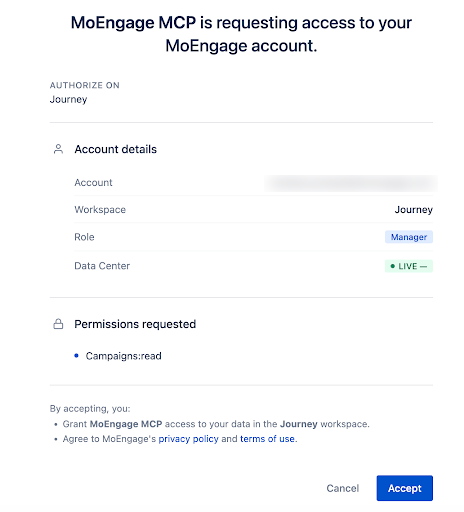
The MoEngage MCP server uses OAuth-based authentication tied to your MoEngage account. The first time you connect, you authenticate with your MoEngage credentials; if you are already signed in, you see an authorization prompt. The screen shows:- Account — your MoEngage email
- Workspace — the workspace you are currently signed into
- Role — your role in that workspace (for example, Manager, Admin)
- Data Center — your data center environment
- Permissions requested — the scopes the server needs
Key Authentication Behaviors
- The server inherits the environment, workspace, and role of your active MoEngage session.
- Authentication tokens are derived from your active MoEngage session.
- If you log out or switch workspaces, you are prompted to re-authenticate.
- All actions respect your existing MoEngage role-based permissions — including which tools your role can use. Reading data requires read access; building or editing requires the matching create/manage permission.
The authorization screen may list a read scope (for example, campaign read) even though the connector exposes many more tools, including write tools. This is a display limitation, not a restriction on what you can do. Which tools actually run is governed by your MoEngage role and by the tools you enable in your client. See Enable the Tools You Need.
Built for Agents
The server is designed so that any AI assistant — not just one vendor’s — can act correctly on the first try. Two capabilities make that possible:discover_schemareturns the exact, current request shape for whatever you’re building (required fields, allowed values, a working example) — so the assistant doesn’t guess.get_content_guideserves validated, on-demand guidance for writing content (Jinja personalization, email HTML) — so the content is correct, not trial-and-error.
The MCP builds and validates drafts. Publishing a campaign, and starting or stopping a flow, remain human actions in the MoEngage dashboard for anything the tools don’t explicitly cover.
What You Can Do
Build campaigns
Draft push and email campaigns — including A/B variants, multi-locale, scheduling, segmentation, and content blocks.
Author content
Get validated patterns for Jinja personalization and email HTML, and preview how content renders for sample users.
Manage segments
Create custom segments, browse existing ones, and get live user counts with channel reachability.
Work with flows
Search flows, read their configuration and versions, analyze flow and per-channel performance, and pause or resume them.
Search & review
Find campaigns across every channel; read a campaign’s full configuration and content.
Analyze performance
Pull campaign performance, delivery funnels, click breakdowns, device analytics, and dashboard charts.
Analyze behavior (beta)
Run behavior, funnel, and retention analyses on product events, and discover the events and attributes to use.
Available Tools
Create, edit, and test-send are supported for Push and Email. Search and analytics work for all channels (Push, Email, SMS, WhatsApp, Webhook); SMS and other non‑Push/Email channels are read-only for campaign creation. Which tools you can use depends on your MoEngage role. If a tool you expect is missing, refresh the tools list.Build a Campaign
Author Content
Content Blocks
Segments
- Segment filters must use the exact internal (platform) names of events and attributes, not the dashboard display name (for example,
moe_city, not “City”). A display name is often accepted at create time, but the count later fails with no error reason. Resolve names first withfind_events,find_user_attributes, andfind_event_attributes(see Catalog Discovery), and always use the returnednamefield. - To target users who did not perform an event, don’t set
executed: falseon anactionsfilter — it is silently ignored. Place a positiveactionsfilter inexcluded_filtersinstead, or use"execution": {"type": "atmost", "count": 0}. Common create-time errors:409(name already taken),400(malformed filter, or the operatorequalsinstead ofis),413(filter too large or too deeply nested).
Flows
Dashboards
Search & Read
Supported status filters:
ACTIVE, DRAFT, EXPIRED, NOT_SENT, PAUSED, SCHEDULED, SENDING, SENT, STOPPED, UNDER_REVIEW, REJECTED.
Campaign Analytics
All analytics tools enforce a maximum date range of 30 days.
Product Behavior Analytics (Beta)
These tools are newer and still in beta — names and response shapes may still change. If you don’t see them yet, refresh the tools list.
Catalog Discovery
Use these to find the right events and attributes before building a segment or running a behavior analysis. All three return top-ranked matches with confidence scores, never the full catalog; event and attribute names vary per workspace, so the assistant should never guess them.Feedback
Building a Campaign, Step by Step
1
Discover the Shape
The assistant calls
discover_schema for your channel and delivery type to get the exact payload structure.2
Find the Audience
Use
find_events / find_user_attributes and create_custom_segment (with start_segment_count to confirm reach) to target the right users.3
Author the Content
For email HTML or Jinja personalization, it calls
get_content_guide for validated patterns.4
Create the Draft
create_campaign_draft (or patch_campaign_components to refine an existing draft).5
Preview Personalization
create_personalization_preview confirms the content renders correctly for sample users.6
Validate
validate_campaign_draft runs the full publish check and reports any field-level issues.7
Publish
Review and publish the draft from the MoEngage dashboard.
Example Prompts
Known Behaviors and Limitations
We document known quirks so you and your assistant can work around them instead of hitting them unexpectedly.Enable the Tools You Need
Write tools (for example, creating campaigns, editing content blocks, creating segments) may be off by default in your client. If the assistant says it lacks access to do something, enable that tool in your client’s connector settings — in Claude, under Settings → Connectors → MoEngage → Tool permissions. Which tools you can enable is still bounded by your MoEngage role.Refresh the Tools List
New tools are added to the connector over time. If a newly shipped tool doesn’t appear, refresh the connector’s tools list in your client. If the refresh option isn’t available, disconnect and reconnect (re-authenticate) the MoEngage connector to pick up the latest tools.Segmentation Behaviors
Segmentation Limits
The segmentation tools do not enforce rate limits of their own; the limits below come from the MoEngage APIs they call. There is no published quota on how many segments or queries you can create in a period, no enforced minimum interval between polls, and no documented cap on concurrent count jobs.
Rate limiting can still occur at the platform level.
Some segmentation APIs, including the real-time membership check, can return a
429 (Too Many Requests) error under heavy traffic. There is no published request quota; when a 429 occurs, retry after about 60 seconds. All tool calls also pass through the MoEngage API gateway, which can apply its own traffic controls.Other Limitations
- Publishing a campaign is not available through the MCP — drafts are published from the MoEngage dashboard.
- SMS and other non-Push/Email channels are read-only for creation: searchable and analyzable, but not creatable.
- Date range for analytics is limited to 30 days per query.
- Batch size:
get_campaign_statsaccepts up to 50 campaign IDs per request. - Content size: email HTML can be large (10–50 KB); fetch full content deliberately.
- Campaign-name date format: campaign names often encode dates as DDMMYY (for example,
230326= 23 March 2026). If analytics return all zeros, check your date range first. - Analytics response shape: stats are returned as a single cross-channel structure — metrics that don’t apply to a campaign’s channel come back as
0, not absent. Don’t infer a campaign’s channel from which fields are non-zero.
Security and Permissions
- The MCP server can build and validate drafts, create segments, and read and analyze campaigns, flows, and dashboards. It does not publish campaigns — publishing is a human action in the dashboard.
- Every action is scoped to the workspace and role of the authenticated user. Tools your role lacks permission for are not available to you.
- Data shared with AI assistants is subject to the respective AI provider’s data-handling policies. MoEngage lists its AI sub-processors (including Anthropic and OpenAI) on its website.
- Review MoEngage’s Privacy Policy and Terms of Use for more information.
Troubleshooting
Cannot access the MCP server or your data
Cannot access the MCP server or your data
The server inherits the active session from your MoEngage account.
- Verify you are signed in to the correct MoEngage workspace.
- If you signed out or switched workspaces, re-authenticate the MCP connection to restore access.
A tool you expected isn't available
A tool you expected isn't available
First, make sure the tool is enabled in your client’s connector settings — see Enable the Tools You Need. Then confirm your MoEngage role has the matching permission (for example, campaign create/manage for build tools). If it’s a newly announced tool, refresh the tools list.
A newly announced tool doesn't show up
A newly announced tool doesn't show up
Refresh the connector’s tools list, or disconnect and reconnect the MoEngage connector to re-authenticate. See Refresh the Tools List.
Re-authentication fails when switching workspace or data center
Re-authentication fails when switching workspace or data center
Switching the workspace or database on an active connection can briefly error. Wait a short while and re-authenticate — the connection typically succeeds on retry.
A segment count fails with no error reason
A segment count fails with no error reason
This almost always means a filter uses a display name instead of an internal name. Resolve names with Catalog Discovery and re-validate with
deep_validate_segment_filters before creating the segment again.A segment or query is not created
A segment or query is not created
Check the response for a specific error code:
409 means the name is already taken, 400 means the filter structure is malformed, and 413 means the filter is too large or deeply nested. A 400 on a filter that otherwise appears correct is often the operator: use is, not equals, for text equality. See the common-errors note under Segments.is_user_in_segment returned segment_eligibility: false
is_user_in_segment returned segment_eligibility: false
This is not a “no”: it means the segment type does not support real-time evaluation (file-based, funnel, retention, and predictive segments are batch-only). Check the segment’s type, or fall back to a saved count with
start_segment_count.A segmentation tool is not available to the assistant
A segmentation tool is not available to the assistant
Tool availability depends on your MoEngage role and your client’s connector settings. See Security and Permissions and Enable the Tools You Need.